How it works
Every field of the Tarkib window, every part of a card and every setting, one screen at a time. To install Tarkib and make your first card, start with Get started.
The Tarkib window
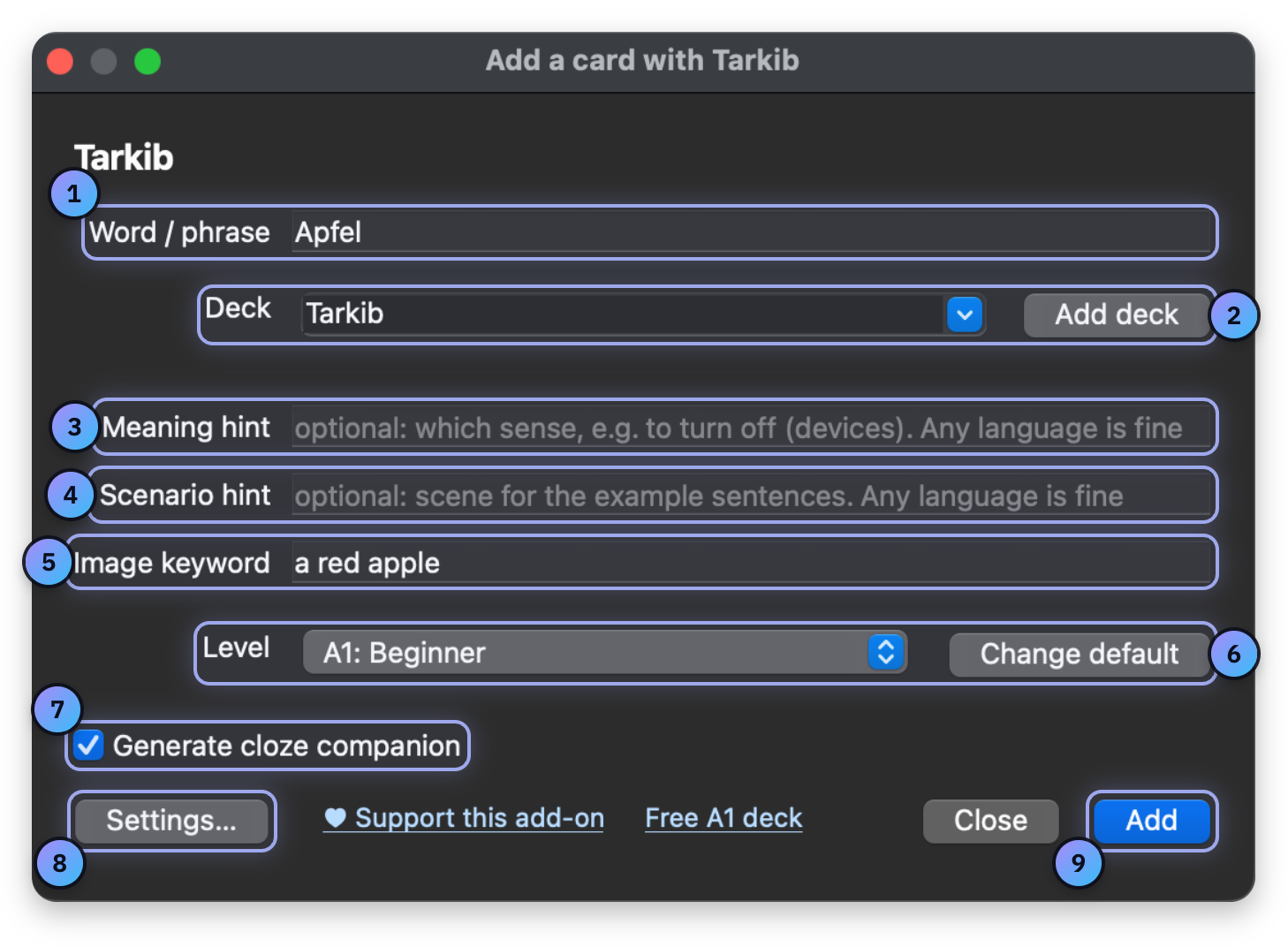
- Word or phrase The German word you want to learn. A short phrase works too.
- Deck Where the card goes. Add deck creates a new one.
- Meaning hint Optional, in any language. Picks one sense when a word has several.
- Scenario hint Optional, in any language. Sets the scene for the sentences, like work or travel.
- Image keyword Optional. Describe the picture you want, in any language.
- Level A1 to C1, or Native for real spoken German. Change default opens Settings, where you set the level new cards start at.
- Generate cloze companion On by default. Also makes a card where you type the missing word.
- Settings Your keys, languages, voices and default level.
- Add Makes the card and adds it. The window stays open for the next word.
Other ways to open it: Ctrl+Shift+G (Cmd+Shift+G on a Mac), Tools, then Add a card with Tarkib, and the Tarkib button in the card editor.
Before the card is written
- If the word is not German, Tarkib says so and asks: Add it anyway?
- If you mistype, it asks: Did you mean ...?
- If the word is already in the deck, it warns you first.
After it is added
The cards are written by AI, so please check each one and edit it like any other note. If you do not want it, one Undo removes the card and its typing card together.
Your card
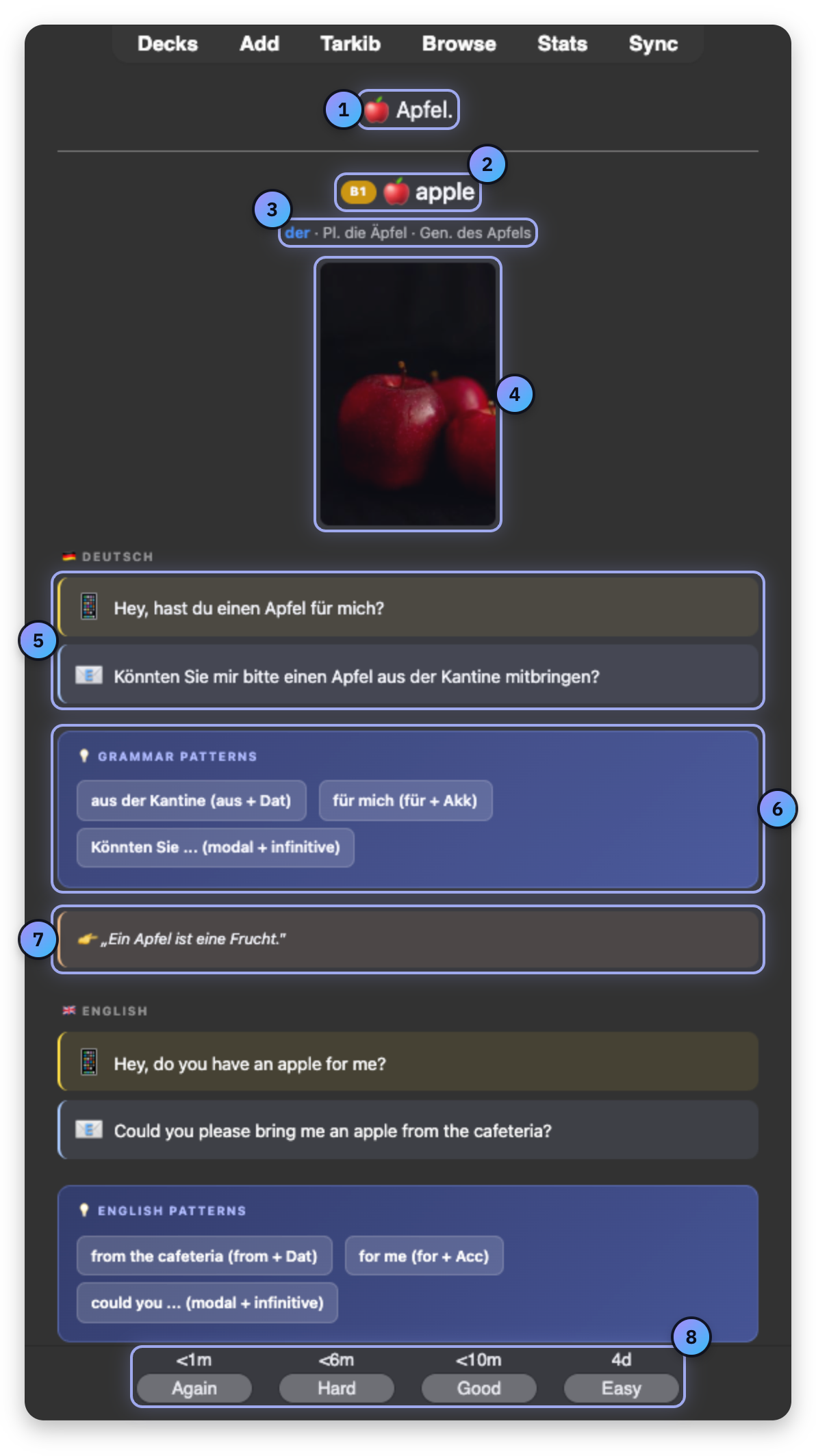
- Your word The front of the card: your word with an emoji.
- Meaning and level The meaning in your language, with the level of the card.
- Article and plural Article colored by gender, the plural, and the genitive from B1.
- Photo A photo that fits the word, found with your free Pexels key.
- Two sentences One casual, one formal, usually du and Sie, both translated.
- Grammar patterns Prepositions with their case and more, all from these sentences.
- Explanation One short sentence in simple German about the word.
- Answer buttons Again, Hard, Good or Easy. Each shows when the card comes back.
The card also has audio: the German word, both sentences and the translation, read in the voices you pick on the Languages tab.
Your new card is in its deck, with its typing card just below.
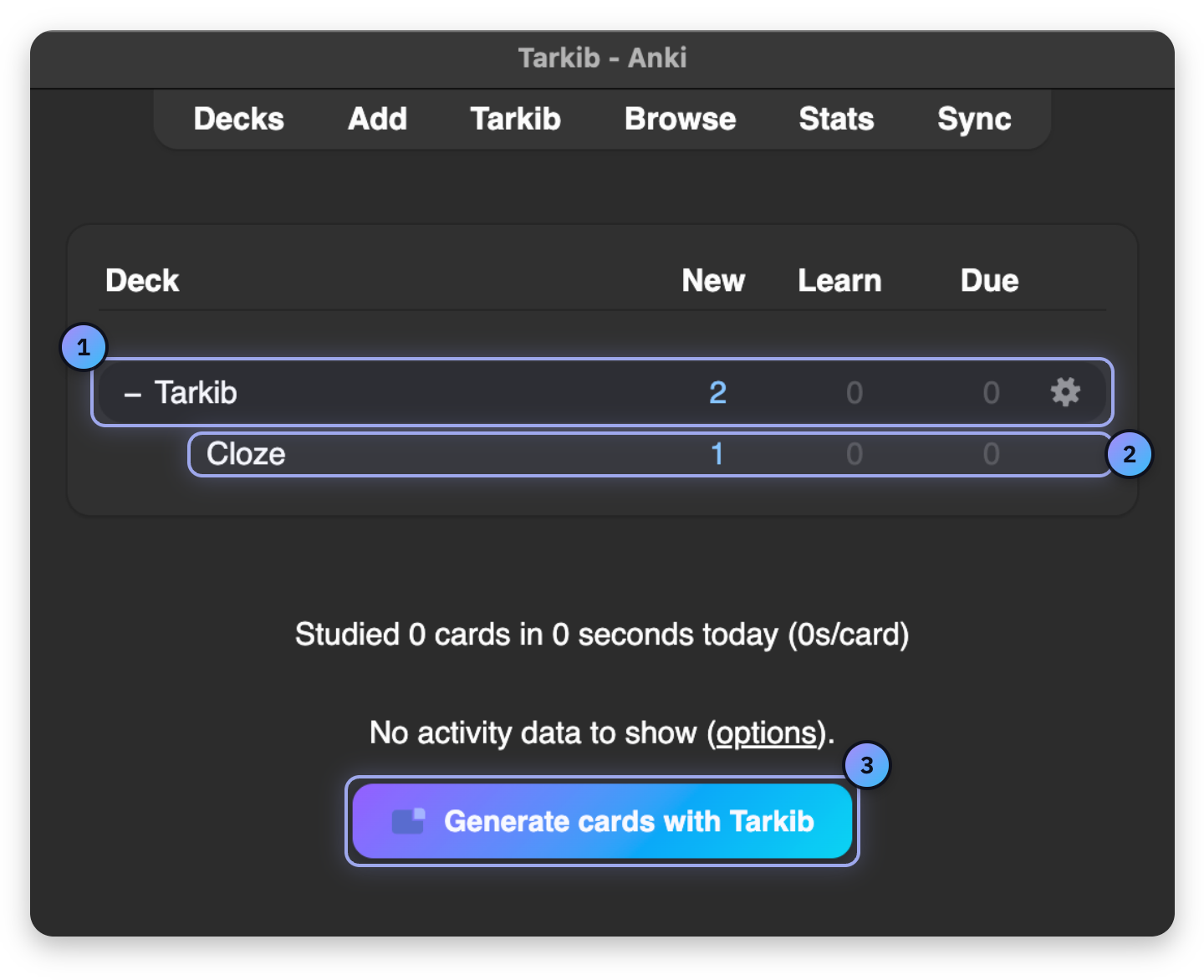
- Tarkib deck 2 new: your card and its typing card. Click it, then Study Now.
- Cloze subdeck Typing cards go into a Cloze deck inside the deck you chose.
- Next card Opens Tarkib again whenever you want the next card.
The typing card
The typing card shows a German sentence with the word left out. Type the word and click Check to see if you got it right, letter by letter. A second translation language, if you set one, goes on the word card only.
Studying on your phone
The cards are normal Anki notes with their pictures and sound, so they sync to AnkiDroid and AnkiMobile like any other deck. Only making them needs Anki on a computer.
The settings, tab by tab
The Provider tab picks the AI that writes your cards.
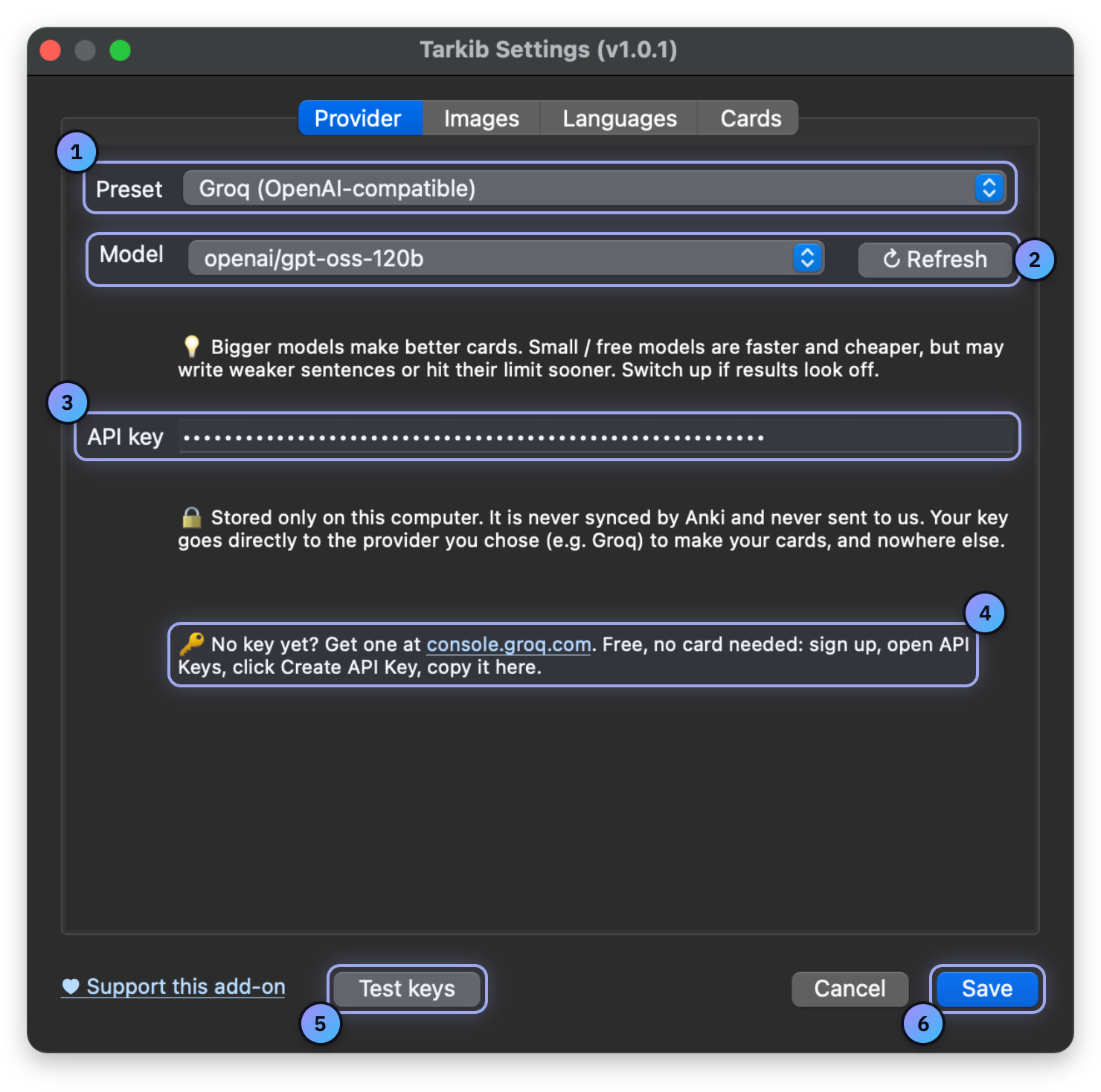
- Preset Groq is the free default. OpenAI, Gemini and others work too.
- Model and Refresh Bigger models make better cards. Refresh reloads the list.
- API key Stored only on this computer and sent only to your provider.
- Get a key Changes with the preset. For Groq it opens console.groq.com.
- Test keys Checks the AI key and any photo keys, without making a card.
- Save Saves all four tabs. A new key that does not work gets a warning. Cancel closes without saving.
If you already have a key for OpenAI, Google Gemini, OpenRouter, Mistral or Anthropic, or you run Ollama on your own computer, pick it under Preset on the Provider tab and paste the key. Any OpenAI-compatible server works too. A ChatGPT subscription does not include API use. The OpenAI API is billed separately.
The Images tab decides where the photos come from.
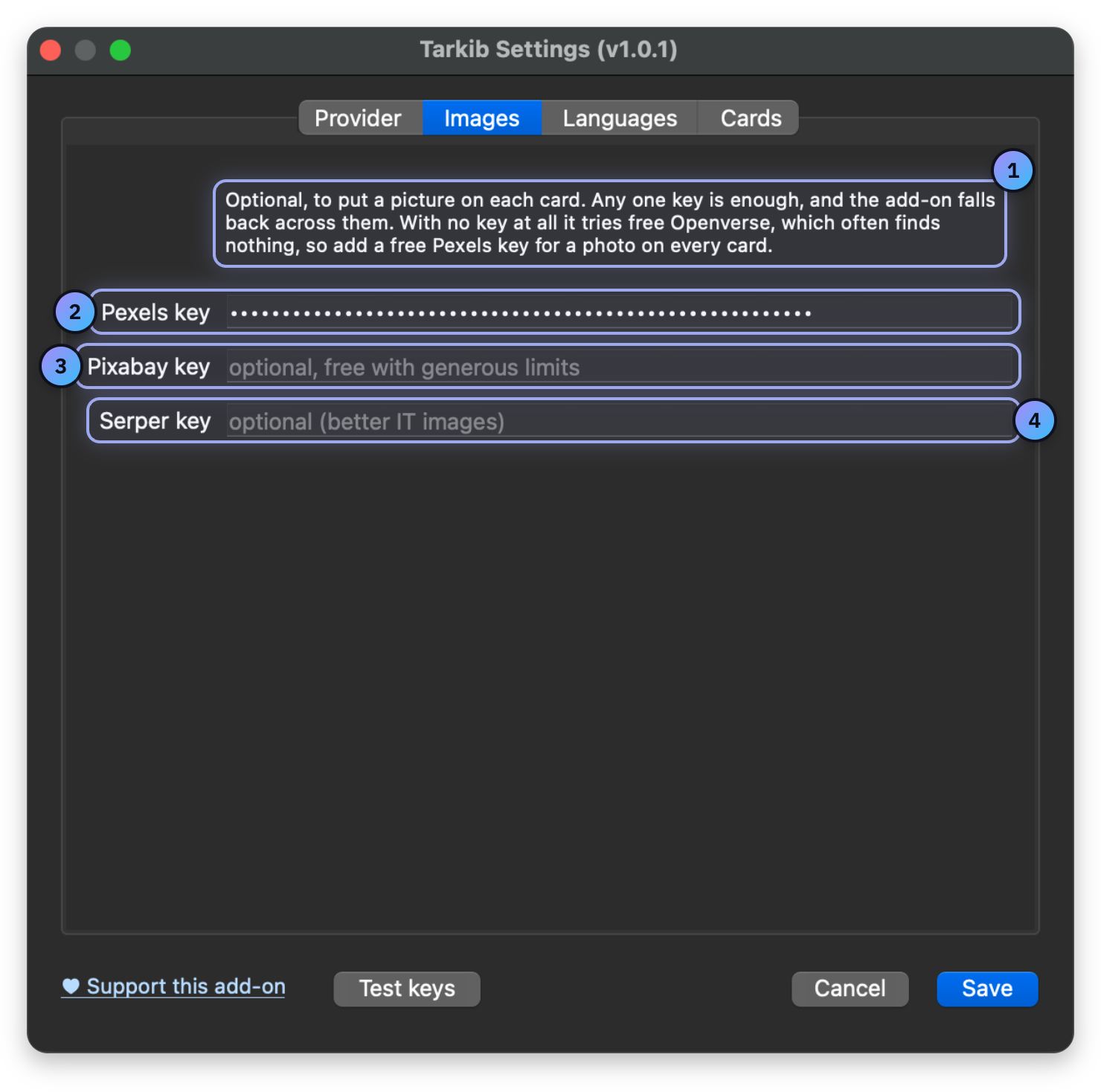
- Without a key Tarkib falls back to Openverse, which often finds no photo.
- Pexels key Recommended and free. Tarkib tries it first in most decks.
- Pixabay key Optional backup. Free with generous limits, tried after Pexels.
- Serper key Optional. Searches Google Images, better for IT terms.
The Languages tab sets your language and the voices.
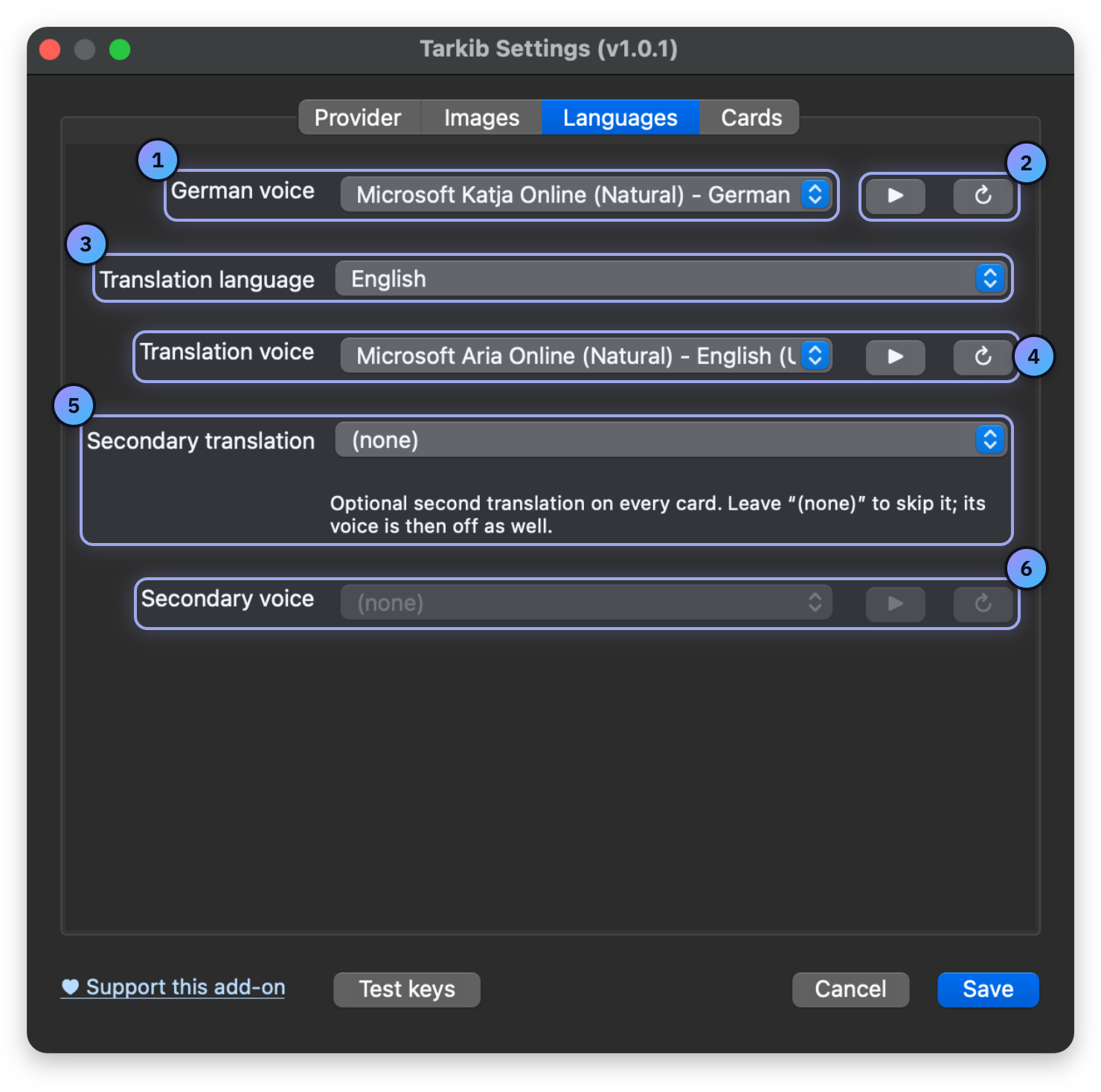
- German voice Reads the German word and both sentences aloud. No key needed.
- Play and refresh Play reads a sample sentence. Refresh loads the latest voices.
- Translation language Your language for the meanings and translations, any of 24.
- Translation voice Reads the translations aloud. (none) turns that audio off.
- Secondary translation Optional. A second language, like Arabic next to English.
- Secondary voice Reads the second language aloud. Off while that is set to (none).
English is the default translation language. Arabic translations use Modern Standard Arabic.
The Cards tab sets your default level.
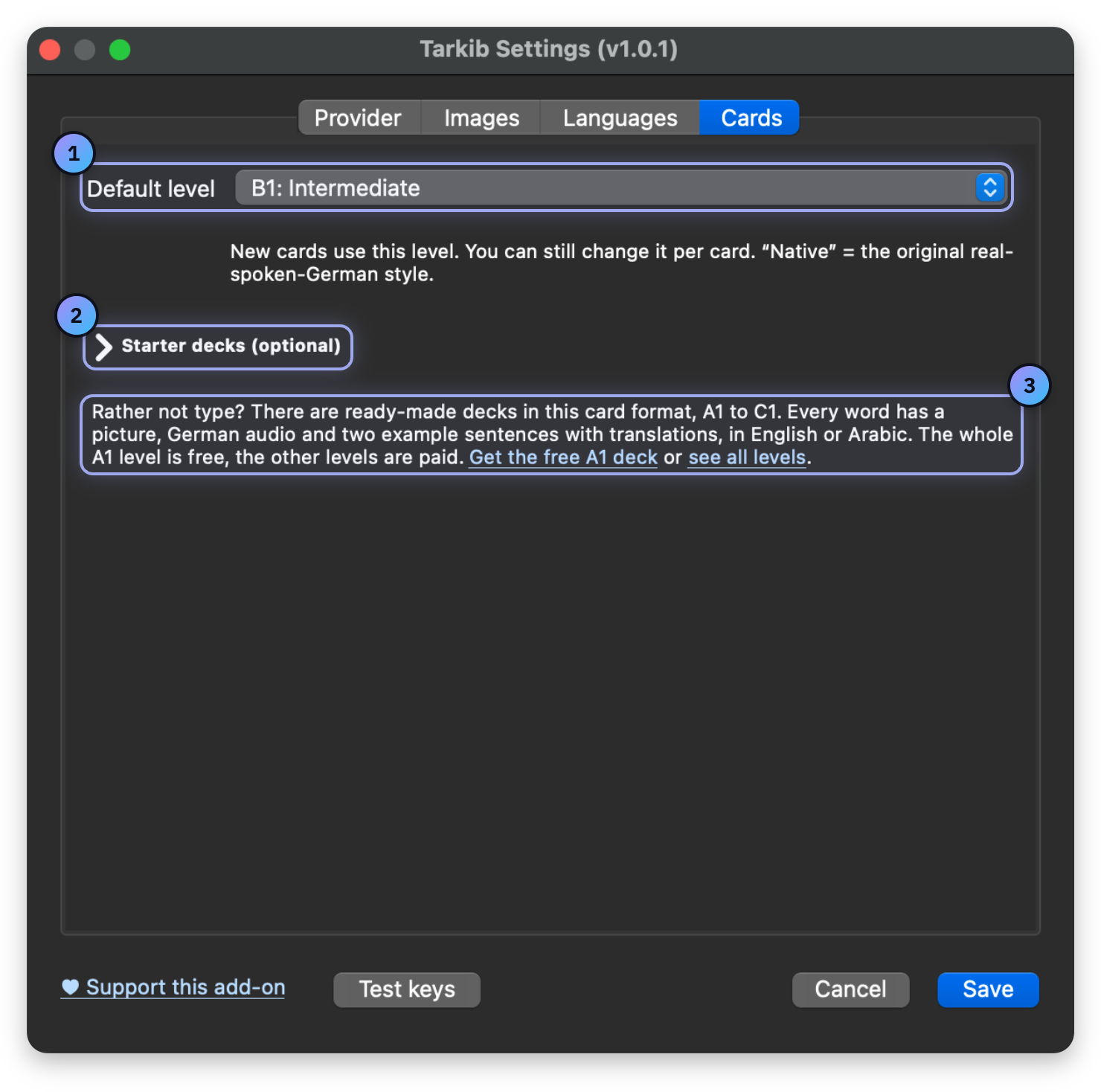
- Default level New cards start at this level. You can still change it per card.
- Starter decks Empty topic decks, like Verben. Cards made there fit the topic.
- Ready-made decks Finished decks from A1 to C1. A1 is free, the other levels are paid.
Where your keys go
Your keys are stored only on your computer, in the Anki add-on settings. They are never synced, and each one only goes to its own service. Nothing is sent to me, and there is no server of mine in between. What is sent where.